Best Setting for Infinix Zero 30 to Make It Faster
The Infinix Zero 30 is already a powerful smartphone with…
The Infinix Zero 30 is already a powerful smartphone with a stylish curved AMOLED display, a strong MediaTek processor, and enough RAM to handle gaming, multitasking, and daily use. Still, many users notice that after a few months of use, the phone may not feel as smooth as it did on the first day. Apps can open slower, animations may lag, gaming performance can drop, and battery drain may increase. The good news is that you do not need to buy a new phone or install risky apps to fix these issues. With the right settings, the Infinix Zero 30 can become significantly faster and smoother.
Most Android smartphones slow down because of unnecessary background activity, overloaded storage, heavy animations, and poor optimization settings. The Infinix Zero 30 includes several built-in features designed to improve speed, but many users never enable them. Hidden options like Memory Fusion, refresh rate controls, Game Mode, and developer settings can completely transform the user experience. Think of your smartphone like a sports car. Even if the engine is powerful, it still needs tuning to perform at its best. Proper settings are the tuning tools that unlock the real speed of your device.
This detailed guide explains the best setting for Infinix Zero 30 to make it faster using safe and effective methods. Whether you use your phone for gaming, video editing, social media, or multitasking, these settings can help improve overall performance while also reducing lag and heating problems.
Why Your Infinix Zero 30 May Feel Slow
Many users assume their smartphone becomes slow only because of old hardware, but that is not always true. In most cases, software settings and storage management are the real reasons behind reduced speed. The Infinix Zero 30 comes with XOS software, which includes many extra features, animations, and background services. While some of these features are useful, others consume RAM and processor power continuously. Over time, temporary files, cached data, and unused apps begin piling up in the background like clutter inside a room. The more clutter there is, the harder the phone has to work.
Common Reasons Behind Performance Drops
One major reason for lag is excessive background apps. Many social media apps constantly refresh notifications, sync media files, and track updates even when you are not using them. Apps like Facebook, Instagram, TikTok, and WhatsApp can quietly consume RAM and battery throughout the day. Another common issue is low storage space. When your internal storage becomes nearly full, the system struggles to manage temporary files efficiently. This directly affects app loading speed and multitasking performance.
Heavy animations are another hidden problem. Modern Android phones use fancy transitions and motion effects to make the interface look premium, but these animations also consume processing power. On paper, they look smooth, but in reality, they can make your phone feel slower. Reducing or disabling animations can instantly make the device respond faster. Outdated apps and software bugs can also create instability, causing freezing or heating issues during gaming and multitasking.
How Android Background Processes Affect Speed
Background processes work like invisible workers running behind the scenes. Some are necessary, while others are completely unnecessary. Android allows apps to remain active so they can quickly reopen when needed. The downside is that too many active apps consume memory resources continuously. Imagine trying to run a race while carrying a heavy backpack. Your phone faces the same challenge when dozens of apps run silently in the background.
The Infinix Zero 30 includes smart RAM management features, but users still need to manually optimize certain settings for maximum performance. Limiting unnecessary activity helps the processor focus on active tasks like gaming, browsing, or video streaming. Once these background processes are controlled, users often notice faster app launches, smoother scrolling, and better battery life almost immediately.
Overview of the Infinix Zero 30 Hardware
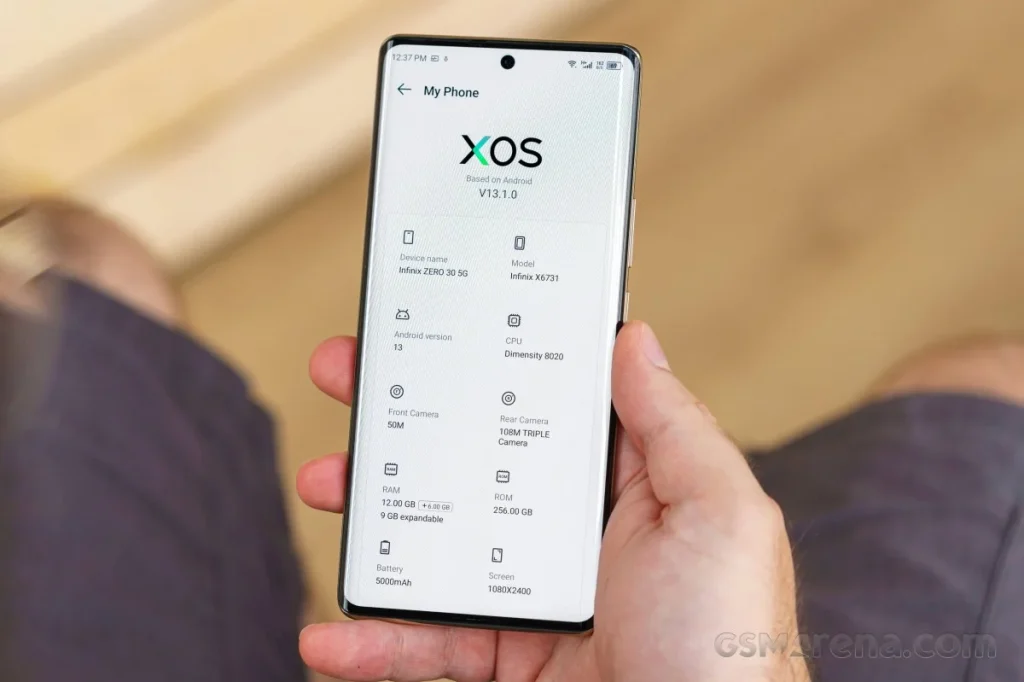
Before changing settings, it is important to understand the hardware strengths of the Infinix Zero 30. The phone is powered by the MediaTek Dimensity chipset, paired with fast RAM and AMOLED display technology. This hardware is more than capable of handling demanding tasks when properly optimized.
| Feature | Infinix Zero 30 Specification |
|---|---|
| Processor | MediaTek Dimensity 8020 |
| Display | 144Hz AMOLED |
| RAM | Up to 12GB + Virtual RAM |
| Storage | 256GB |
| Charging | 68W Fast Charging |
| Software | XOS based on Android |
MediaTek Dimensity Processor Performance
The Dimensity processor inside the Infinix Zero 30 is designed for strong gaming and multitasking performance. It uses advanced architecture that balances power efficiency with speed. This means the phone can handle demanding games and apps smoothly while also conserving battery life. Many users underestimate how powerful this chipset actually is because the default settings prioritize balanced performance instead of maximum speed.
When performance-focused settings are enabled, the processor can deliver significantly smoother gameplay and faster app handling. The GPU also becomes more efficient during gaming sessions. Heat management improves when unnecessary processes are reduced, allowing the chipset to maintain stable performance for longer periods.
RAM and Storage Optimization Features
The Infinix Zero 30 offers Memory Fusion technology, which converts a portion of storage into virtual RAM. This feature improves multitasking by allowing more apps to stay active in memory. While virtual RAM is not as fast as physical RAM, it still helps reduce app reloads and improves overall responsiveness during heavy use.
Fast UFS storage also contributes to better loading speeds. However, storage performance declines if the device becomes cluttered with junk files and unused applications. Keeping enough free storage space available is essential for maintaining smooth performance. Experts generally recommend keeping at least 20% storage free for optimal speed and stability.
Best Display Settings for Faster Performance
The display settings play a surprisingly large role in how fast a phone feels. The Infinix Zero 30 includes a high refresh rate AMOLED display that can deliver extremely smooth scrolling and animations. Properly configuring this feature can greatly improve the overall user experience.
Adjusting Refresh Rate for Smooth Experience
Go to Settings > Display > Refresh Rate and select the highest available refresh rate. A higher refresh rate allows the screen to refresh more times per second, making scrolling and animations look incredibly smooth. The difference feels similar to upgrading from a regular road to a freshly paved highway. Everything becomes more fluid and responsive.
Some users prefer using the Auto option to save battery life, but if your priority is speed and smoothness, manually selecting the highest refresh rate delivers the best experience. Apps open faster visually, social media scrolling becomes smoother, and gaming feels more responsive.
Choosing Between Auto and High Refresh Rate
The Auto mode intelligently switches between refresh rates depending on the app being used. While this saves battery, it sometimes causes inconsistent smoothness. Setting the display permanently to 120Hz or 144Hz ensures a consistently fluid experience. Competitive gamers especially benefit from higher refresh rates because touch response becomes more accurate and movement feels smoother during gameplay.
Keep in mind that higher refresh rates slightly increase battery consumption. Still, for users focused on speed and premium performance, the trade-off is absolutely worth it. The Infinix Zero 30 battery is large enough to handle the additional power usage comfortably.
Optimize RAM for Better Speed
RAM optimization is one of the most effective ways to improve smartphone performance. The more available memory your phone has, the faster it can handle multitasking and app switching.
Using Memory Fusion Properly
Open Settings > Special Functions > Memory Fusion and enable the feature. Choose the highest available virtual RAM option for better multitasking performance. This allows the system to use part of the internal storage as temporary RAM. While it is not identical to real RAM, it still improves responsiveness significantly when many apps are open.
Users who frequently switch between games, browsers, and editing apps will notice fewer reloads and smoother transitions. Think of Memory Fusion as adding an extra storage shelf to an already crowded room. It creates additional breathing space for your phone’s operating system.
Closing Unnecessary Background Apps
Avoid leaving too many apps running in the background. Some users believe keeping apps open saves time, but this actually increases RAM usage and battery drain. Regularly clearing recent apps helps free up system resources.
You should also disable unnecessary auto-start permissions. Go to Settings > Apps > Auto Start Management and turn off auto-start for apps that do not need constant background activity. This reduces CPU workload and helps the phone stay cooler during extended use.
Best Gaming Settings for Infinix Zero 30
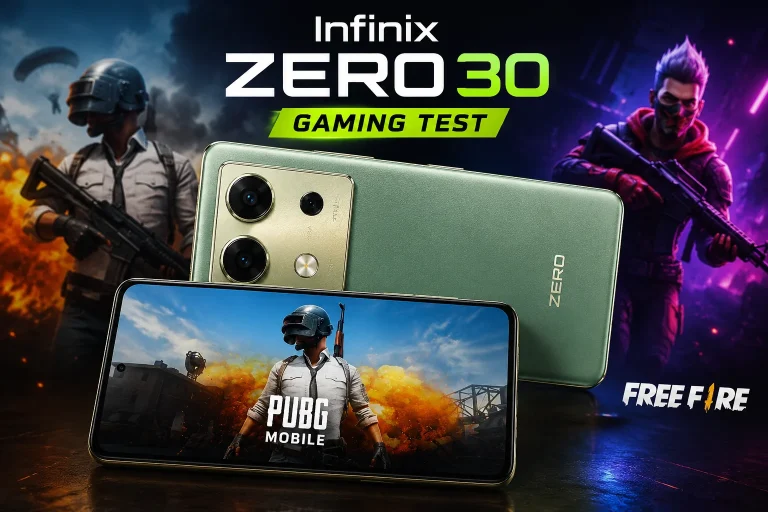
The Infinix Zero 30 is a capable gaming smartphone, especially for titles like PUBG Mobile, Free Fire, and Call of Duty Mobile. Optimizing gaming settings can improve frame rates and reduce lag.
Enable Game Mode for Maximum FPS
Open the built-in Game Mode and enable performance optimization features. This mode allocates more system resources to games while limiting interruptions from notifications and background apps. Gaming performance becomes smoother because the processor focuses entirely on gameplay instead of multitasking.
Many games also support higher frame rates on the Infinix Zero 30. Selecting balanced graphics instead of ultra-high graphics can provide smoother gameplay with lower heating. Competitive players often prefer stable frame rates over maximum visual quality because consistent performance improves reaction time.
Reduce Heating While Gaming
Heating is one of the biggest enemies of smartphone performance. Once temperatures rise too high, the processor automatically slows down to protect internal components. This process is called thermal throttling. Lowering brightness slightly, using a stable internet connection, and avoiding charging while gaming can significantly reduce heat.
Removing thick phone cases during gaming also helps improve airflow. Cooling the phone properly allows the processor to maintain higher performance levels for longer sessions. This results in smoother gameplay and better battery efficiency.

Battery Settings That Improve Performance
Battery optimization settings directly affect how fast and stable your phone feels. Aggressive battery-saving features can slow background activity and reduce app responsiveness.
Turn Off Battery Restrictions
Navigate to Settings > Battery > Battery Optimization and remove restrictions for important apps like games and browsers. This prevents Android from aggressively limiting app performance in the background. Apps open faster and notifications arrive more reliably when battery restrictions are relaxed.
Ultra power-saving modes should only be used during emergencies because they drastically reduce performance capabilities. Keeping the phone in balanced or performance mode ensures maximum speed during normal use.
Best Charging Practices for Long-Term Speed
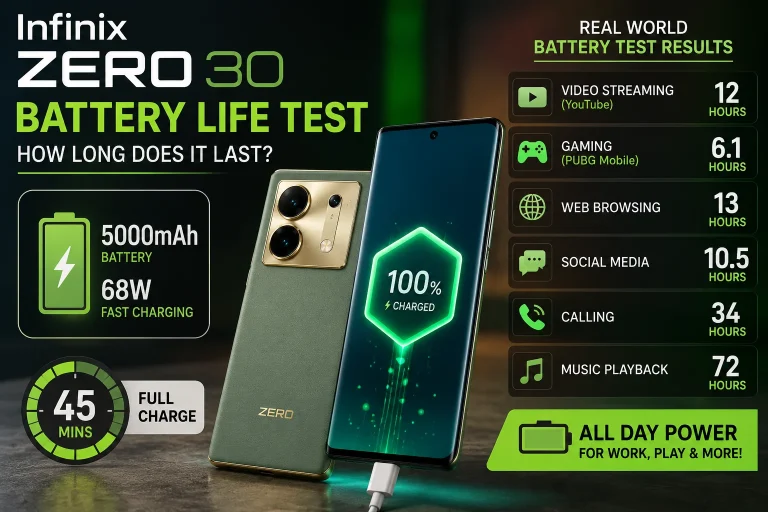
Battery health also affects long-term smartphone performance. Using original chargers and avoiding excessive overheating while charging helps preserve battery efficiency. Damaged batteries can cause unstable performance, lag, and sudden frame drops.
Experts recommend keeping battery levels between 20% and 80% whenever possible for better long-term health. While modern batteries are durable, consistent overheating still reduces efficiency over time.
Developer Options to Make Infinix Zero 30 Faster
Developer Options contain advanced settings that can dramatically improve the responsiveness of your smartphone.
Reduce Animation Scale
Enable Developer Options by tapping the Build Number multiple times inside About Phone. Once activated, go to Developer Options and reduce these settings:
- Window Animation Scale
- Transition Animation Scale
- Animator Duration Scale
Set all three to 0.5x or turn them off completely. This makes the interface feel significantly faster because animations complete more quickly. The difference is immediate and noticeable. Apps open almost instantly, and navigating the system becomes snappier.
Force GPU Rendering
Enable Force GPU Rendering to shift some graphical tasks to the GPU instead of the CPU. This can improve visual smoothness in certain apps and reduce lag during interface transitions. While results vary slightly depending on the application, many users report smoother scrolling and faster rendering performance after enabling this setting.
Be careful not to change unknown developer settings randomly. Some advanced options can negatively affect stability if configured incorrectly.
Best Storage and Cleaning Settings
Storage management is essential for maintaining long-term performance.
Remove Junk Files and Cache
Use the built-in Phone Master or storage cleaner to remove junk files, residual cache, and temporary data regularly. Cached files help apps load faster initially, but excessive cache eventually becomes clutter that slows the system.
Deleting unused apps also frees valuable resources. Many pre-installed apps consume storage and background power even if rarely used. Removing unnecessary applications creates more room for essential apps and improves overall efficiency.
Disable Auto-Downloading Media
Messaging apps often download photos and videos automatically, filling storage quickly. Disable automatic downloads inside WhatsApp, Telegram, and Messenger settings. This not only saves storage space but also reduces unnecessary background activity.
Cloud backups should also be configured carefully. Continuous syncing can increase battery drain and slow network performance. Adjust sync intervals to balance convenience with performance optimization.
Internet and Network Settings for Faster Browsing
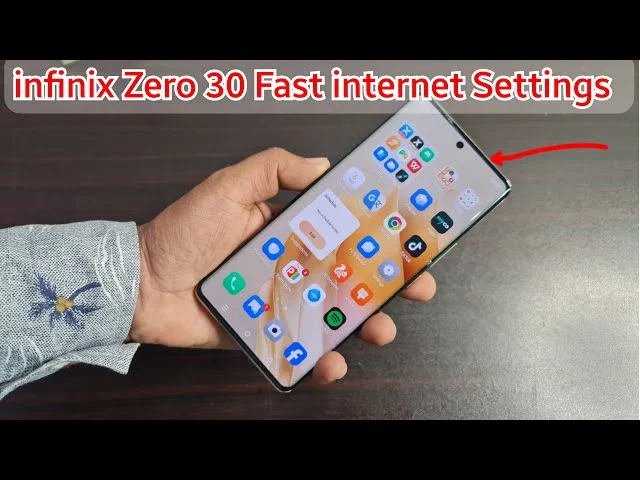
Fast internet settings can improve browsing speed, streaming quality, and online gaming stability. Resetting network settings occasionally removes connection bugs and improves signal reliability. Using 5GHz Wi-Fi instead of crowded 2.4GHz networks provides faster speeds and lower latency.
You should also disable automatic app updates over mobile data. Background downloads can slow browsing and increase lag during gaming. DNS optimization apps may also improve website loading times depending on your internet provider. Stable internet performance makes the entire smartphone experience feel smoother and more responsive.
Final Performance Tips for Infinix Zero 30
Keeping your Infinix Zero 30 updated is extremely important. Software updates often include security patches, bug fixes, and performance improvements that directly impact speed and stability. Restarting the phone every few days also helps clear temporary processes and refresh memory allocation.
Avoid installing unknown optimization apps from random sources because many of them actually slow down devices with intrusive ads and unnecessary background services. The built-in optimization tools inside XOS are usually enough for most users.
Factory resetting the phone once every year can also restore original performance if the device becomes excessively cluttered. Think of it like giving your smartphone a fresh start. Backing up important data before resetting is essential to avoid losing personal files.
Conclusion
The Infinix Zero 30 already includes powerful hardware capable of excellent performance, but the right settings make a massive difference in daily use. Optimizing refresh rate, enabling Memory Fusion, reducing animations, cleaning storage, and controlling background apps can transform the phone into a significantly faster and smoother device. Small changes often create surprisingly large improvements.
Gaming becomes more stable, multitasking feels smoother, apps open quicker, and battery performance improves when the phone is properly configured. Instead of relying on risky third-party booster apps, using built-in optimization settings is the safest and most effective method. With regular maintenance and smart settings adjustments, the Infinix Zero 30 can continue delivering flagship-level smoothness for a long time.